Each Data Supply requires its own source set up on the system. First you create the source, then when you add a Data Import Template, you select the source to import the data from.
Setting up a source
-
Select Sources from the Data Loading menu.
-
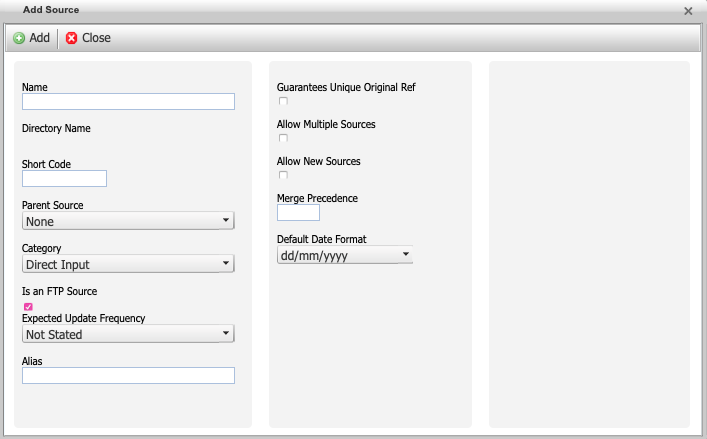
Click Add to open the Add Source window.
-
Enter the information for the source:
-
Name - Identifies the source and is used to name the directory on the FTP server that stores incoming data files.
-
Short Code - A string that identifies it in code. It is usually an abbreviated, lowercase version of the source’s name.
-
Parent Source - Specifies another source as the “Parent” of this one. It has no effect on ETL processes.
-
Category - Either “Direct Input” or “ETL procs” (reserved for future use). It currently has no effect, but you should identify ETL sources for future compatibility.
-
FTP Source - Check this box for all ETL sources to create a directory for the source on the FTP server. You can create SFTP credentials for the supplier to deliver the data files onto the SFTP. These get imported into the system.
-
-
Select the additional options:
-
Guarantees Unique Original Ref: Select this if the source provides an ID for incoming person records that is unique to that person. It is used as a check before running the Source URN dedupe rule.
-
Allow Multiple Sources
-
Allow New Sources
-
Default date format: Select either
- Day-Month-Year (European)
- Month-Day-Year (American)
- Year-Month-Day (Asian/ISO 8601)
-
-
Click the Add button.
Adding FTP account information
After you add the source, you will need to reopen the source and specify the FTP credentials.
-
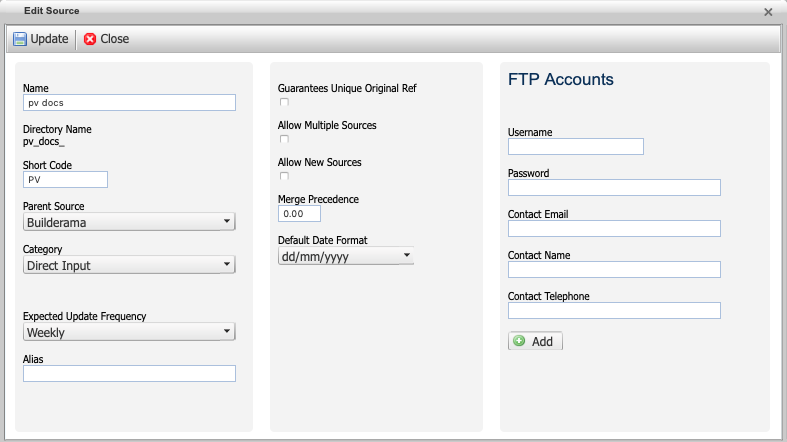
If you are using an FTP source, select the new source from the list to Edit the source.
-
Enter a username and password for an account that has access to the FTP site.
-
Enter the email, name, and telephone for the user associated with the user account.
-
Click Add to add the information.
-
Close the dialog box. The source will now appear in the Source drop-down menu on the Add Data Import Template dialog box.